Run your first scan
Review exclusions, then save the starting state of eligible files. This reference records what exists now.
 iamgsbala.
 FileOps Monitor
A clearer starting point after a WordPress update or code edit. Run a manual scan and review added, modified and deleted files.
Local processing · No account required · Free on WordPress.org
wp-config.phpModifiedwp-includes/version.phpModifiedthemes/…/functions.phpModifiedReview exclusions, then save the starting state of eligible files. This reference records what exists now.
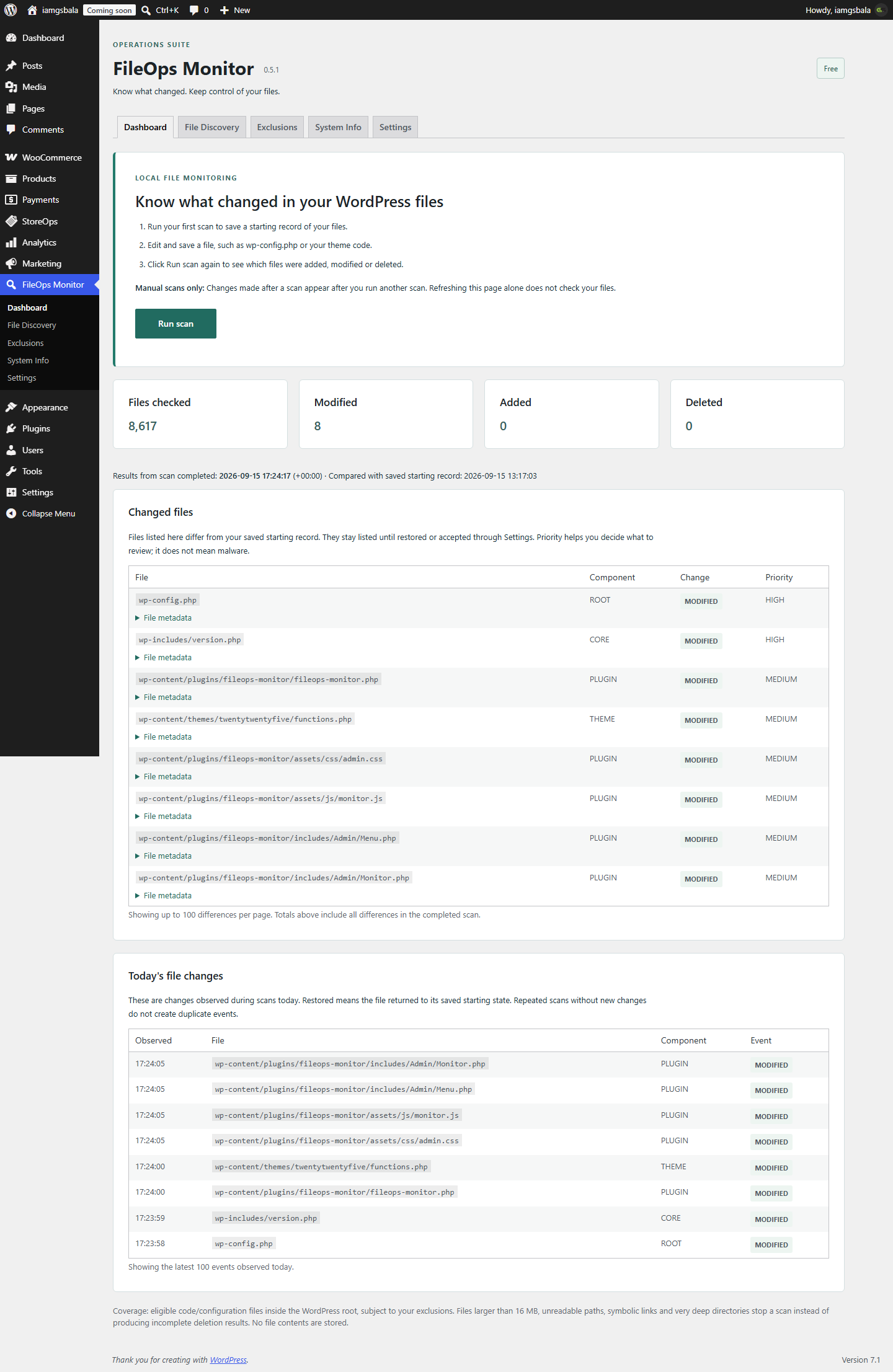
After an update or saved edit, start a manual scan. Refreshing the dashboard alone does not check files again.
Review paths, change types and priorities. Accept a new reference only after checking legitimate changes.
Start on a staging or local site. Create an inert PHP file containing only a comment, such as wp-content/fileops-demo.php. Run your first scan, change only that comment, save, and run another scan. Confirm the modified path appears. Restore the exact original contents and scan again. Do not edit production core or credentials just to test the plugin. Removing the demo file later may correctly appear as a deletion.
Install and activate FileOps Monitor, then review Exclusions and run your first scan. A starting reference records the current files; it cannot reconstruct earlier edits.
A controlled local test detected edits in all three locations. The test files were restored afterward.
₹0
₹1,000 / year, proposed
Proposed for one production website. Features, tax treatment and terms will be finalized before sales open. No payment or registration is collected here.
No. FileOps Monitor reports differences from a saved reference. Review priority helps you decide what to investigate; it is not a malware verdict or repair function.
Your reference may already contain the edit, the file may be excluded or unsupported, or you may be viewing an older completed scan. Save the file and run a new scan.
It creates a new comparison reference after you review legitimate changes. It does not repair, restore or edit your site files, and is not needed for routine scans.
No. Free scans are manual. Scheduled scans and email alerts are planned for the separate Pro add-on.
No. It monitors eligible code/configuration types within the WordPress root. Exclusions, unsupported binary/media files, symlinks and the 16 MB per-file limit affect coverage. Read the plugin documentation before relying on a report.
Free processes files locally, stores hashes and metadata rather than source contents, and makes no external requests.
Start with a saved reference and one harmless edit. See whether the report fits your maintenance workflow.